 Quize
McGraw Hill Connect tips: how to learn more from every assignment
November 15, 2026 · The QuizeGpt Team · 8 min read
Show Image
Quick answer: The best McGraw Hill Connect tips are simple. Read each assignment's details before you begin. Try every problem on your own before you use Check My Work or a hint. Start SmartBook by reading, not by answering. After each assignment, open your results and study the questions you missed. Small habits like these turn Connect homework into real learning.

You open Connect, see five assignments due this week, and start clicking. An hour later, you've finished the homework. But do you actually understand it? For a lot of students, the honest answer is "not really."
That's not your fault. Connect has many buttons and settings, and nobody explains how to use them to learn. These McGraw Hill Connect tips fix that.
In this guide, you'll see how Connect assignments work and what Check My Work really does. You'll also learn how SmartBook adapts to you and how to review your results. Then you'll get 10 simple tips to learn more from every assignment.
In this guide:
What is McGraw Hill Connect?
McGraw Hill Connect is an online homework and learning platform from McGraw Hill. Colleges use it for subjects like accounting, biology, chemistry, economics, psychology and many more.
Your instructor builds the course. They choose the assignments, the due dates and the rules. That's why Connect can look a little different in each class.
Most Connect courses include three main parts:
Assignments: homework, quizzes and practice sets with questions
SmartBook: an adaptive reading assignment that changes based on your answers
The eBook: your textbook online, where you can take notes and build study guides
How do Connect assignments work?
Your assignments are listed in the middle of your course home page. Before you start one, click the arrow at the end of the assignment line to see its details.
Always check the details first. McGraw Hill notes that some assignments only allow a limited number of attempts, and some have a time limit. When you're ready, click Begin.
Save and Exit, then Submit
If an assignment is not timed, you can click Save and Exit at any time and come back later. Be careful with timed assignments, though. The clock keeps running even after you Save and Exit.
When you finish, click Submit. Then click Exit to go back to the main menu. If you don't submit, your work may not count, so never leave this step for the last minute.
What do Check My Work and the hints do?
Many Connect questions come with helper tools. They appear on the left side of the page and under the question, but only if your instructor turns them on.
Tool | What it does |
|---|---|
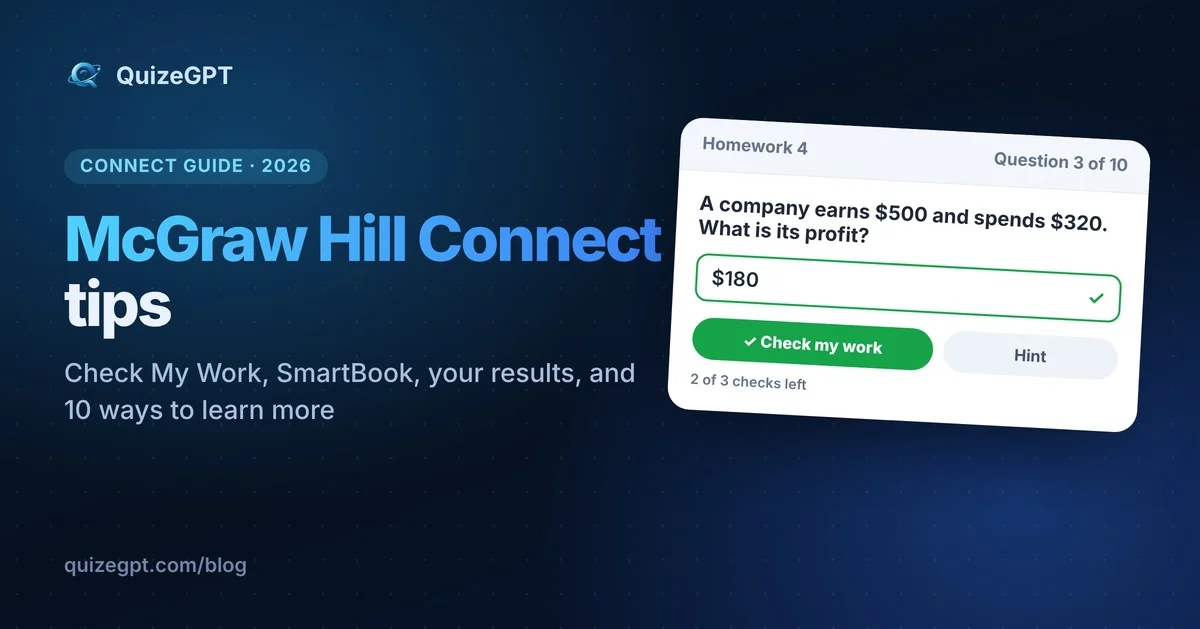
Check My Work | Tells you if your answer is right before you submit. The number of checks can be limited. |
Hints and guided solutions | Walk you through how to solve the problem |
Show Me | Shows the solution steps |
Try Another | Gives you a new version of some questions, with different numbers |
References | Gives information about the question type |
Why you can run out of attempts
This part surprises many students. According to McGraw Hill, if you use all your Check My Work attempts, Connect shows you the solution. The same happens if you open the guided solution or click Show Me.
What happens next depends on the question:
One-version questions: after you see the solution, you can't try that question again in this assignment.
Questions with many versions: a Try Another button may appear, so you can try a new version for credit. By default, you can use Try Another 10 times per assignment attempt.
So the helper tools are great for learning, but use them on purpose. Try the problem yourself first.
How does SmartBook work in Connect?
SmartBook is McGraw Hill's adaptive reading tool. It shows you short readings, then asks questions to find out what you really know. If you see an assignment with an SB icon, that's SmartBook.
When you open a SmartBook assignment, you can choose to start reading or start answering questions. McGraw Hill's own guide says you should always start reading first.
A few more things to know:
Highlights matter. Your instructor picks the highlighted parts of the reading, and they point to the key ideas.
You rate your confidence. For each question, you say how sure you are. This doesn't change your progress bar, but it helps you think about what you really know.
You get instant feedback. If you miss several questions on the same idea, SmartBook may send you back to a part of the reading.
Your score is your progress. Your score is the percent complete on the progress bar at the due date. To get full credit, finish before the due date.
Recharge mode comes later. After the due date, SmartBook switches to Recharge. You can still practice, but it doesn't change your score.
Want more detail? See our guide to SmartBook.
How do you review your results in Connect?
Your results are one of the best study tools in Connect, and most students never open them.
To find them, open the Menu in the upper left of your home page, then click the Results tab and pick your course. You'll see each graded assignment with its score and number of attempts.
Open an assignment to review it. Click Show Correct Answers to see the right answers and explanations. Click show my answers to switch back to your own work.
Your instructor decides how much you can see after you submit. In some classes you can see everything, and in others you can only see your score.
How can you learn more from Connect? 10 tips
Now you know how Connect works. Here's how to make every assignment count.
Read the assignment details first. Check the due date, the number of attempts and any time limit before you click Begin. No surprises later.
Try each problem on your own first. Work it out on paper before you touch Check My Work or a hint. The struggle is where the learning happens.
Use Check My Work as a test, not a guess. Only click it when you think your answer is right. If it's wrong, look for the mistake before you check again.
Treat Show Me as a lesson. If you open the solution, copy the steps into your notes, then try a similar problem without help. That's active recall in action.
Always start SmartBook by reading. The questions make more sense when you've read the highlighted parts first.
Be honest with your confidence ratings. If you're unsure, say so. It helps you see which ideas need more work.
Start early and work in short sessions. Twenty to thirty minutes a day beats one long night before the due date. Spreading your study out is the idea behind spaced repetition.
Watch the clock on timed assignments. Save and Exit does not stop the timer, so plan to finish in one sitting.
Review your results after every assignment. Open Show Correct Answers and study each question you missed. Write down why you got it wrong.
Use the eBook for notes. Take notes and build study guides in the eBook as you go. Our guide on how to take better notes shows simple methods that work.
How can QuizeGPT help with Connect?
Connect's hints and solutions are helpful, but they only show one way to solve a problem. Sometimes you need it explained differently, or you want to ask "why?" one more time.
That's where QuizeGPT helps. It's a Chrome extension that sits in the corner of your screen. Click it on a Connect practice problem and it gives you a clear, step-by-step explanation. Still stuck? Ask a follow-up question, like you would with a tutor.
Use it to understand the method, then solve the next problem yourself. QuizeGPT is a study aid. It's made for practice and homework, and it won't run on live graded or proctored assessments.
See how QuizeGPT works with McGraw Hill Connect, or browse all supported platforms.
McGraw Hill Connect FAQ
What does Check My Work do in Connect?
It tells you if your answer is right before you submit. Your instructor can limit how many times you use it, and running out may show you the solution.
Why does Connect say I'm out of attempts?
You used all your Check My Work attempts, or you opened the guided solution or Show Me. For one-version questions, that ends your tries on that question for this assignment.
Does Save and Exit stop the timer in Connect?
No. On timed assignments, the clock keeps running even after you Save and Exit.
How is SmartBook graded?
Your score is the percent complete on your progress bar at the due date. Your confidence ratings don't change the progress bar.
What is Recharge mode in SmartBook?
After the due date, SmartBook switches to Recharge mode. You can keep practicing, but it no longer changes your score.
How do I see the correct answers in Connect?
Open Menu, then Results, then your course and the assignment. Click Show Correct Answers, if your instructor allows it.
Sources
McGraw Hill: Completing Assignments (student guide, PDF)
McGraw Hill: Why do I keep receiving a message that I am out of attempts?
McGraw Hill: SmartBook 2.0 Overview for students (PDF)
McGraw Hill: Viewing your grades in Connect (PDF)
McGraw Hill: Connect Student Support Tools
QuizeGPT is not affiliated with McGraw Hill or McGraw Hill Connect. Connect and SmartBook are trademarks of their owner.